Review: Checkmark 2 for iPhone

Checkmark 2 - Lists

The original Checkmark to-do list application for iPhone was a stellar app. Now, with the newly released Checkmark 2 by Snowman, an already powerful to-do list manager, has now become even more of a productivity powerhouse.

The new Checkmark 2 adds a slew of new useful features, including, but not limited to: the popularly requested “List” view; one tap rescheduling of tasks; and iCloud support.

“List view” allows for multiple tasks to be grouped together under one common category – which is really helpful for projects (school, business, etc), as well as for simple lists (new movies or food to try).

One-tap rescheduling is also a new feature that is included in the new Checkmark 2, which makes it super easy to push a due date ahead by minutes, hours, or days in one simple tap!

iCloud support is another popularly-requested feature added in Checkmark 2. This feature may not seem that important now, however after you use Checkmark 2 and create multiple to-dos, lists, locations, etc, you would hate to have all that data be lost if something were to happen to your iPhone. That’s where the iCloud backup comes in and it will automatically sync and backup all of your data.

The design of Checkmark 2 truly envisions and adopts the wonderful, flat elements of iOS 7, yet adds it’s own unique style too! The cool shades of green, grey, paired with the white backdrop typical in iOS 7, really come together quite well to create a totally eye-alluring application, that is as beautiful to look at as it is fun to use.

Checkmark 2 (Light)

When it all comes down to it, a to-do list application really needs to do one thing quite well: create tasks quickly and efficiently. I must say that Checkmark 2 excels in this realm.

In Checkmark 2, you create tasks to three different categories: location-based, time-based, or as a list. For me, the location-based task ability is really useful.

For instance, when I am out and about and see an advertisement for a new movie that is coming out, I can quickly add a task in Checkmark 2 to remind me when I get home to look up showing times for this new movie – pretty handy stuff!

Organizing tasks into Lists is also a great way to break down those big, hefty projects into smaller, more obtainable goals!

One thing that I think is lacking in Checkmark 2 is syncing with Apple’s built-in Reminders app. What this does is it syncs the Reminders app tasks with the tasks you have already created in Checkmark 2. This allows you to make changes or add tasks from the Reminders app on your Mac, and then have it synced to your iPhone via the iCloud.

Checkmark 2 - Where

Overall, Checkmark 2 is an uber-smart, task productivity manager for your iPhone all in one clean, simple app, and for just the price of a cup of coffee ($2.99)! Checkmark 2 has already helped save me time and money, just by making my life more organized.

You can read more about and purchase Checkmark 2 from the Snowman’s website, or the through the App Store.

Review: NOMAD’s ChargeCard & ChargeKey

photo 1

In the ever-evolving, technology-run world that we live in today, running out of battery is a big worry for most people. But fear no more, NOMAD has got you covered.

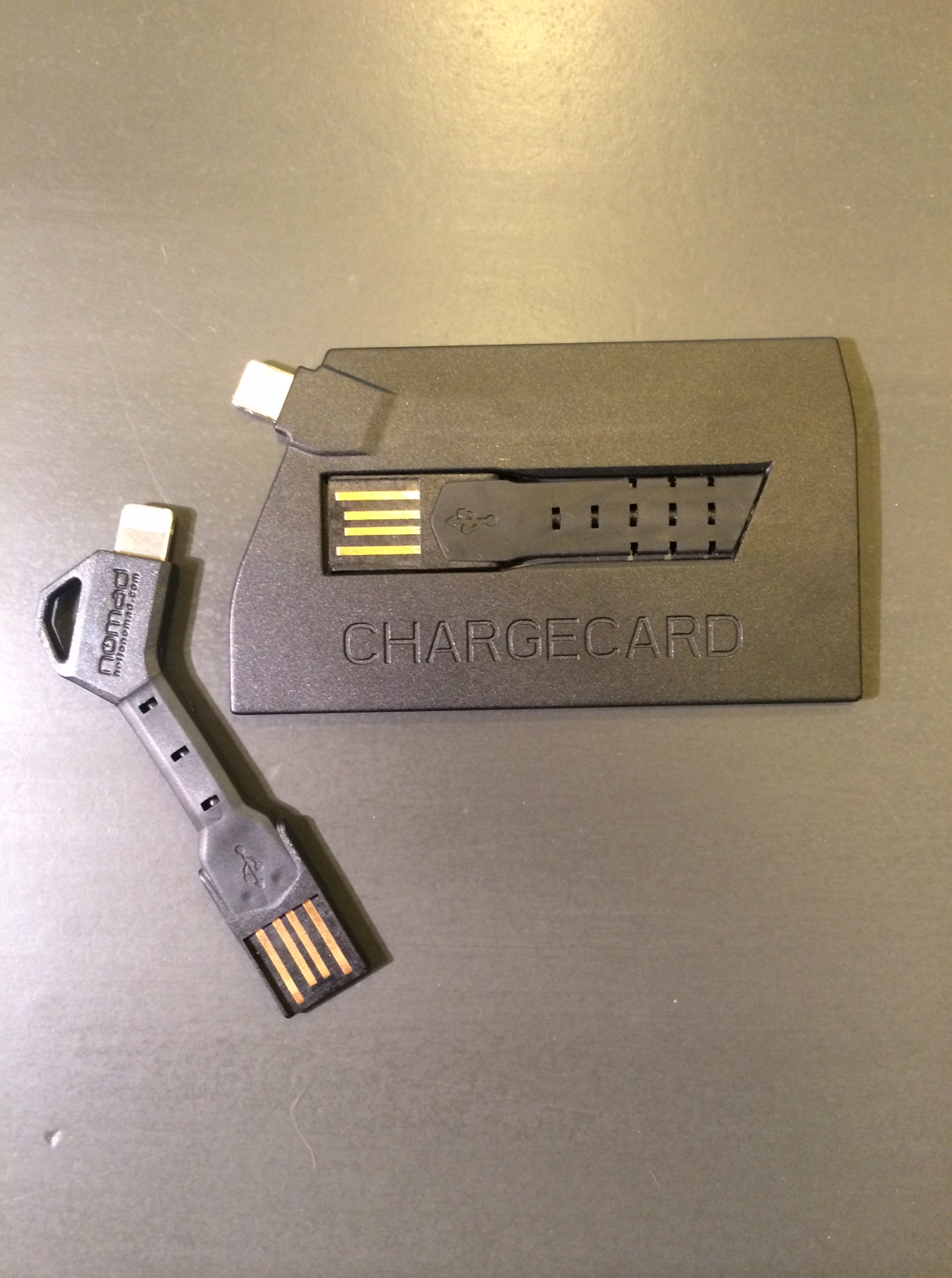
NOMAD Goods recently announced their two new products, the ChargeCard & ChargeKey. Both of which are super small USB chargers that will make sure you are never without a charging cord for your smartphone or tablet.

photo 4

The ChargeCard is a credit card-inspired USB charger that is thin enough to fit inside your wallet. The ingenious slide-out-USB design allows for easy access to a charging cord no matter where you are.

The ChargeKey, being the most recent addition to the NOMAD line of products, is shaped exactly how you would picture it, like a key. The key-inspired design can conveniently attach to a key ring, which makes the ChargeKey ultra-portable, coming in at just 2.5 inches long. Another key feature of the ChargeKey is it’s ability to effortlessly bend up or down to fit any charging position’s needs.

photo 2

One thing that I felt was lacking when using the ChargeCard or ChargeKey to charge your smartphone, it is very awkward and nearly unable to use the phone while plugged in due to the compact design of the ChargeCard/ChargeKey. Perhaps this will be fixed in the coming versions by adding a cord that can extend to allow for more comfortable usability while charging.

Overall, both the ChargeKey and the ChargeCard are terrifically designed and innovated accessories that change the way you think about and charge your phone. I found myself not even needing to bring charging cables on long trips, as I just used ChargeCard or ChargeKey whenever I needed to, wherever I needed to.

photo 3

Just coming in at $25 for each, the ChargeCard or ChargeKey will perfectly compliment your iPhone or other USB-enabled smartphone. You can read more about and also purchase the ChargeCard or ChargeKey at NOMAD’s website here.

October 2013 Apple Event Round-Up

apple-lots-to-cover

On Tuesday, October 22nd, 2013 in San Francisco, California, Apple held a media event to discuss their new and innovative line of MacBooks and iPads, and boy did they deliver!

During this new event, Apple announced several new products, such as Mac OSX 10 (Mavericks), a newly updated iLife & iWork suite of apps, as well as a new Mac Pro, and the brand new iPad Air, which is the latest & greatest in the iPad family of tablets.

Mac OSX 10 – Mavericks

OSX-multiple_displays_missioncontrol

Apple introduced their newest Mac software, Mavericks. This announcement really raised the competition stakes against Microsoft, as this update would be free to all Mac users, something Apple has never done before!

Among the various improvements in UI and speed, OSX 10 increases power efficiency, which allows for a longer lasting battery to allow for more surfing the web, responding to emails, or movie watching. Another improvement over Lion is the upgraded notification system which allows users to respond directly from the notification itself, which I find extremely easy to use and definitely beats going in the app itself just to respond to a tweet or email.

My favorite new feature of Mavericks is the introduction of Finder Tags, which allows for easier and quicker finding of files, documents, photos, and movies. You can create your own tags and easily tag any document or file you like by using a two-finger on your Mac trackpad, and selecting a Tag, so all of your School or Work related files are all in one organized location on your Mac.

In addition, coming preloaded on Mavericks are two new apps, Maps and iBooks. Maps is basically  the same as it is on iOS 7, however you do have the ability to send directions from your computer to your iPhone/iPad as a push notification, which is a really convenient feature! The introduction of iBooks on the Mac is excellent for textbooks or note-taking, however I still prefer to read books on the iPad over the Mac as it is more comfortable to hold, as well as the animations of the page swiping too!

Mac OSX 10 Mavericks is available today as a free update on all Macs. To download it, simply go into the Mac App Store and click ‘Check for Updates’.

Macbook

Macbook-Pro-Featured-Image

In the Macbook line of products, Apple announced three new members to the Mac family: the 13 inch Macbook Pro with Retina Display, the 15 inch Macbook Pro with Retina Display, as well as the new Mac Pro.

The 13 and 15 inch Macbook Pro are shipping with the beautiful, crystal-clear Retina Display, as well as some new upgrades internally, such as an improved battery (9 hours of battery life), 802.11c wifi (3x as fast as the previous versions), as well as an Intel 4th gen. Haswell chip. The new Macbook Pro’s come in at an unbelievable 0.71 inches thick, which is the lightest the Macbook Pro ever!

Apple also launched the new donut-shaped Mac Pro, which has the fastest chip, memory and graphic technology from Apple.

The Macbook Pro(s) are available on Apple’s website now starting at $1,499 for the 13-inch and $1,999 for the 15-inch. The new Mac Pro will be available by year’s end, starting at $2,999.

iPad

retina-ipad-mini-ipad-air

The main reason for this media event: the latest innovations to iPad. Apple announced two new versions to the iPad family: the new iPad Air and the iPad Mini with Retina Display.

On Tuesday, October 22nd, 2013 in San Francisco, California, Apple held a media event to discuss their new and innovative line of MacBooks and iPads, and boy did they deliver!

During this new event, Apple announced several new products, such as Mac OSX 10 (Mavericks), a newly updated iLife & iWork suite of apps, as well as a new Mac Pro, and the brand new iPad Air, which is the latest & greatest in the iPad family of tablets.

Overview

This media event was huge for Apple! Announcing their brand new Mac OSX, three new Macs, as well as updating their iLife & iWork suite of apps, and perhaps most overdue, two super upgrades to the iPad family.

You can read more about all of the details of the Apple event and watch the Keynote video on Apple’s website.

Review: Touchfire Keyboard for iPad

Touchfire started out as a Kickstarter project. Kickstarter is a crowd-funding Web site that enables people to help bring promising new products to life. Touchfire ended up raising over $200,000, which is incredible!

The Touchfire keyboard is made from a high-performance silicone rubber, which makes it very easy to clean (rinse in sink), and it is very easy to store. Touchfire uses the magnets in the iPad 2, 3, & 4 to automatically align in place, and on the iPad 1, the non-slip bottom keeps it in place.

So is this new keyboard easier to type with? Can it replace the Apple Bluetooth Keyboard as your go-to keyboard for your iPad? All of these questions will be answered in my review of the Touchfire Keyboard for iPad!

—–

Quality

The materials used in Touchfire are of very high quality. In my 2 weeks of testing, the Touchfire showed no signs of scratches or tears, which is very impressive considering my iPad goes everywhere with me and I use it 24/7.

How it works

The Touchfire aligns automatically using the iPad’s magnets that are used to attach with the Apple Smart Cover. This is a brilliant feature, because you won’t have to worry about the Touchfire moving or shifting during typing as the magnets hold it in place very strongly. On the iPad 1, the Touchfire sticks on to the iPad using the non-slip button on the bottom of the Touchfire. I don’t have an iPad 1 on hand to test this with, but here’s a video from Touchfire demonstrating how this works.

Usability

Typing with the Touchfire keyboard on the iPad was a breeze. The Touchfire adds tactile feedback to the typing experience on the iPad, which makes it very much like a computer keyboard, and is definitely more easy than typing on the iPad without the Touchfire installed. With the tactile feedback of the Touchfire, I found that I was making less typing errors than normal, which saved a lot of time from having to go back and correct my mistake as I would have to do normally.

Cleaning

The Touchfire can be easily washed by running the keyboard under tap water & drying it with a towel and this is something that I found myself doing a lot of during my two weeks of testing. The Touchfire can get really dirty, very quickly. It accumulates tons of hair, dust, & other particles because of the sticky rubber keyboard. I would find myself washing the Touchfire keyboard every 2-3 days of use, which isn’t bad considering all the typing and work I had done on my iPad in the last few weeks.

Overall

Overall, the Touchfire is an excellent addition to any iPad. It allows you to type faster, decreases errors in your typing, and it is lighter & easier to travel with than a big, bulky Apple Keyboard. If you travel a lot, or write long emails, stories, or notes on your iPad and you don’t want the hassle of bringing along a bluetooth keyboard, and if you don’t mind washing the keyboard every 2-3 days, this is the product for you.

You can read more about and purchase the Touchfire Keyboard for iPad here.

Review: Apple iPhone 5

The Apple iPhone 5 – a smartphone that has been rumored, wished, and talked about – is finally here and it’s packing a huge punch with a brand new A6 processor, bigger screen, new design, and super fast 4G LTE. Not a bad upgrade from the iPhone 4S!

Apple is one of the leading tech companies all around the world, with their vast product line of Macs, iPods, iPhones, & displays. Every year, there is always that one must-have smartphone and most of the time, Apple’s iPhone is that particular device.

Can this new iPhone 5 keep up that must-have smartphone standard? Is it that much better than the iPhone 4/4S to warrant an upgrade? Is 4G LTE that much faster than 3G? All of these questions and more will be answered in my review of the Apple iPhone 5 below.

—-

Design
Apple has always been known for their unique sense of design and in particular, their design used on the iPhone 4 & 4S smartphones. The iPhone 4/4S had people from all around the world ranting and raving about the sleek, glass and aluminum combination of the smartphones. These Apple devices set a standard for smartphone manufacturers to not only release high-quality products, but high-quality products with a great design and the new iPhone 5’s design takes Apple quality to a new level of craftsmanship.

Apple added a bigger screen to the iPhone 5 coming in at 4 inches (9 millimeters taller than the iPhone 4/4S). The iPhone 5 is the same width as the iPhone 4/4S, so typing with one hand is just as easy. With this added screen real-estate, the iPhone 5 also has 18% more pixels than the iPhone 4S for an impressive 1136-by-640 resolution, which makes playing games, watching movies, and even checking email, a vivid, visual delight! The color has also received a boost compared to previous iPhone models with a color saturation that is 44% greater than before.

The Apple new smartphone is just 7.6 millimeters thin and weighs in at 3.95 ounces, which despite the iPhone 5’s added screen size, makes the phone feel very thin & light in the hand; without feeling cheap or inexpensive. The iPhone 5 is 18% thinner, 20% lighter, and there is 12% less volume than the iPhone 4S.

Apple introduced a new design with the iPhone 5 as well, as the back of iPhone 5 is made of anodized 6000 series aluminum (same material used in Apple Macs) with the inlays along the top and bottom made of ceramic glass (white & silver model) or pigmented glass (black & slate model). This new design for the iPhone 5 makes it an even more beautiful device to look at and it truly is a work-of-art.

Hardware


The iPhone 5 is a beast of a smartphone, complete with 4G LTE, a blazing fast new A6 processor, and well as an 8 megapixel iSight camera on the back & an 1.2 megapixel FaceTime-ready HD webcam on the front.

The new A6 processor on the iPhone 5 makes almost everything faster. Opening apps, multitasking, editing movies or music, or creating Keynote projects, is now a breeze; without any lagging or hesitation. You might not think that the A6 processor does much on paper, but when you get your hands on an iPhone 5, you’ll realize how important it is for everyday things.

I reviewed an iPhone 5 running on Verizon’s 4G LTE network, which is one, if not THE fastest data network for a US mobile phone carrier. Downloading apps, movies, & music was very quick and again, it is a massive improvement over the 3G network that the 4S and iPhone 4 run on.

I didn’t really notice that much of a difference between the camera on the iPhone 4S and iPhone 5. What I did notice was a huge difference in the photo quality of the front camera on the iPhone 5 compared to previous generations, however. Photos using the front camera were much clearer and less pixel-y than before, which is perfect for people who enjoy taking pictures of themselves or FaceTiming friends & family.

Software


The software that is shipping with the iPhone 5 is Apple’s brand new iOS 6, which was announced at WWDC 2012 back in June and was released to the public on September 19th.

iOS 6 isn’t as much as a revolutionary software update as iOS 4/5 were, but is more geared to tweaking and creating a better user experience around all iOS devices. Some of the new features include; updated UI (from grey to light blue/silver) in the standard Apple apps, Passbook, Do Not Disturb, brand new Maps, Facebook integration, FaceTime over 3G/4G LTE, new emojis 🙂 (LOL), and many more updates as well.

Passbook is an app that allows you to save boarding passes, movie tickets, retail coupons, loyalty cards, and more are now all in one place. You can add passes to Passbook through apps, emails, & website from participating businesses. It’s a great idea and I love using it with my gift cards, as I don’t have to go digging through my car’s pockets to find my gift card. Passbook will also send you push notifications when you arrive at a location that you have a Passbook pass for, which is very handy if your at the airport or walk into a store to redeem your favorite gift cards!

Do Not Disturb has to be my most used feature on iOS 6. Do Not Disturb allows push notifications to come through to your phone, but when the notifications come in, the screen will not turn on and a sound will not be played. However, when you turn the screen back on, all your notifications will be waiting on your lock screen. I use Do Not Disturb regularly! Another great feature about Do Not Disturb is that you can allow your “Favorites” calls and text messages to come through normally but still collect other notifications not set as your Favorites in the lock screen.

Apple has redesigned their Maps application from the ground up, which means they have completely gotten rid of their Google-hosted maps, which is a good and bad thing. The good is that it looks stunning, but the new Maps app isn’t as updated as the Google Maps with driving directions and correct locations. Also added in the new Maps app, is visual and spoken turn-by-turn directions as well as real-time traffic updates.

Overall, the new iOS 6 software isn’t REvolutionary but more EVolutionary. With all these new features and tweaks, it makes using the iPhone 5 even easier & faster than before. Every year, Apple makes its iOS software even better, and this year is not any different.

Overall


The new iPhone 5 is a beast of a device – with the new design, upgraded hardware, bigger & brighter screen, faster 4G LTE speeds, and new iOS 6 software, the iPhone 5 has yet again set the smartphone bar very high for competing mobile phone manufacturers.

The iPhone 5 is available in two colors: Black & Slate, or White & Silver. Prices for the iPhone 5 on a cellular contract are 16 GB ($199), 32 GB ($299), and 64 GB ($399).

The new iPhone 5 is available on Verizon Wireless, AT&T, and Sprint.

You can read more about and purchase the iPhone 5 on Apple’s website.

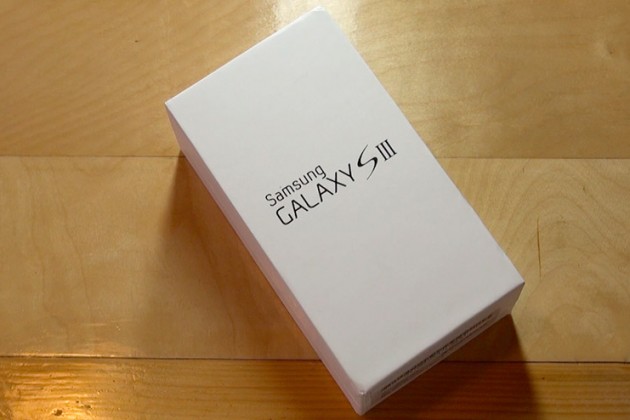
Quick Review: Samsung Galaxy S III for Verizon Wireless

Considering its predecessor, the Galaxy S II, sold millions upon millions of units, a lot of expectations have been mounted on Samsung’s shoulders for this quad-core smartphone. Is it really worth all the hype? How does it perform in everyday life? You can find out about all of this and more in my review of the Samsung Galaxy S II for Verizon Wireless.

 —-

Specs

– Screen: 4.8″ 720×1280
– Processor: 1.4 GHz quad-core Exynos
– Storage: 16GB/32GB/64GB, Up to 64GB SD card support
– Camera: 8-MP rear camera with LED flash, 1.9MP front-facing camera
– Connectivity: HSPA/3G, Wi-Fi 80.211b/g/n, Bluetooth 4.0, DLNA, A-GPS, GLONASS, NFC, Wi-Fi Direct, USB On The Go
– Ports: microUSB (MHL compatible), 3.5mm headphones
– Battery: 2100mAh, removable
– Price: $200 ($599 for full-retail)

What is it?

It’s the smartphone that was designed to put every other Android phone in the dust. It’s got a huge HD display with next-gen screen technology; Samsung’s new quad-core Exynos processor chip, and a bunch of new software; including this really cool eye-tracking ability to change the screens brightness!

Who’s It For?

This phone was built for a broad range of people, everyone from Android enthusiasts, to the people who still use a typewriter, all the way to the Apple Fanboys.

Design

There are many people who are just sold on the phone because they owned a previous Galaxy S device, as well as some people who don’t know anything about the phone but like the largeness of the device. That’s great, but what about the design and the feel of the device? Will it fit in your pocket? Ladies, what about your little clutch purse?

The new HyperGlaze polycarbonate chassis feels very cheap, nothing like the high-end smartphone as Samsung advertises. While it may be pretty to look at, it make’s the SIII feel very fragile, almost like a child’s toy.

The camera-button has lost it’s previous location, and now the the volume button placement makes it slightly tricky to activate the lock key on the other side.

However, while first impressions will be mixed, the build quality of the Galaxy S III is excellent. When the Galaxy SIII was unveiled, Samsung states that they created the new smartphone to resemble the Earth. The toughened glass front feels very solid when stroked and prodded, and the beautiful design of the chassis fits very well in the palm – very much like a pebble, thanks to the rounded edges.

Plus, on the back side of the device, there’s a compartment for a removable SD card, so smartphone users can further personalize their experience.

Using It

Samsung has changed the UI of the Galaxy S II (TouchWiz) a little bit, adding re-sizeable widgets and some brand new widgets like a brand new brightness toggle in the notifications tray.

The camera is very strong. It uses a very similar sensor as seen in the S II, and while the software optimisation has made it super quick and added in some key features, camera lovers might not want to use this as their daily camera of choice.

But overall, the phone just works. There’s no more lagging when flipping through the homescreens, playing games, or watching movies, like I experienced with the Galaxy S II. (My review here.)

Highlights

The Super AMOLED screen offers terrific sharpness and vivid colors when viewing pictures, movies, or playing games! Samsung has been known for there very vivid TV screens and they seem to have brought the best of their television screens to the new Galaxy S III.

Again, the Samsung Galaxy S was very fast, and I experienced no lag during my two weeks of testing.

Lowlights

The only real issue I have with the Galaxy S III is the design. If I am paying $200 ($599 for full-retail) I want my smartphone to feel like an expensive, solid device, not like a child’s toy.

Overall

Should you buy it? If you haven’t bought a new smartphone since 2010, and are looking for an Android phone, yes. But, if you are still on the edge about buying it, I would wait until the new iPhone (5th generation) comes out, and compare the two.

Get past the design and you’re looking at one of 2012’s leading smartphones: crazy powerful, with a beautiful screen, and more storage than an average USB stick.

It’s not perfect (I haven’t seen any phones this year hit that bar) but it’s very, very close… and it will probably be enough to entice those that simply can’t bear the thought of waiting until October to pick up the iPhone 5.

You can read more about and purchase the Samsung Galaxy S III here.

Review: Boxwave KeyboardBuddy iPhone Case

Millions of people are very happy with Apple’s on-screen virtual keyboard, but many still desire a tactile response only a physical keypad can provide. Apple has stated in the past that it sees no point in adding a hardware QWERTY keyboard onto the iPhone, but the company goes back and forth so many times with iOS products that no one knows what to believe.

Knowing this, BoxWave thought of a way to use the iPhone’s Bluetooth technology and build a case that had a physical QWERTY keyboard. It’s great for people who want Apple to add a QWERTY to the iPhone, but will it lure over virtual-keyboard-users over? How is it compared to the other Bluetooth Keyboard Cases for the iPhone? I’ll answer all of these questions and more in my review of the BoxWave KeyboardBuddy case for iPhone 4 & 4S.

Design

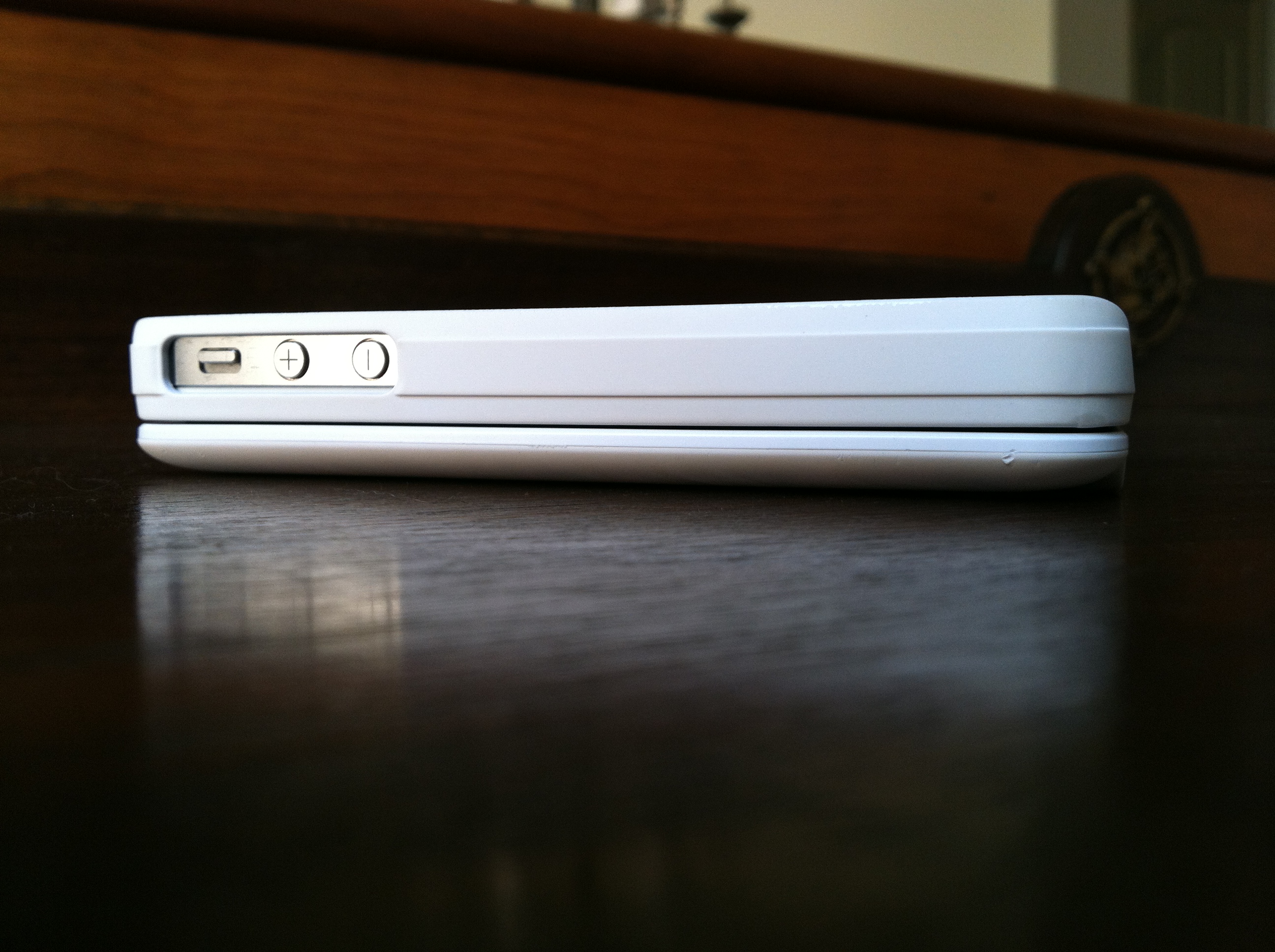
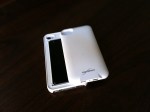
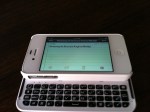
Design wise, the Keyboard Buddy is very sleek, especially considering that it adds a full hardware keyboard to the back of the device. The sliding mechanism is very solid, and there’s an enthusiastic click as you open and close it. It’s reminiscent of the slider on a device like the T-Mobile Sidekick – and that’s a good thing!

There’s also more than enough room to hit the top row of number keys, something other sliding cases often have trouble with. It charges via miniUSB, and BoxWave claims you should be able to go a huge 45 days without having to re-charge. The whole kit has a matte white, soft touch finish that adds a nice grip to the all-glass iPhone. Pairing the Keyboard buddy was an uneventful affair; the BoxWave was up and running in about 30 seconds after typing in a passcode. That’s when I could start putting this thing to the test!

Keyboard

The actual keyboard on the Keyboard Buddy is very similar to the one found on the Droid 2 or 3. Keys are laid out edge-to-edge, and there’s a decent amount of give with each click. The space bar is perfectly placed in the center of the keyboard, unlike some of the other Bluetooth keyboards on the market today. There’s a home key on the top left as well as a lock key right below it, two nice touches for sure.

It’s important to point out that when you choose to use a physical keyboard with your iOS devices, you lose all autocorrect functionality. I longed for things like automatic capitalization of “i” for example, and wish that it would automatically add apostrophes to words. Hopefully this is something Apple could enable as an option in a future version of iOS.

Overall

Overall, the BoxWave KeyboardBuddy case is an excellent option for BlackBerry users wanting to switch to the iPhone but not wanting to sacrifice their physical keyboards, as well as for older iOS users who have trouble seeing the letters on the iPhone’s virtual keyboard and like the satisfying click of a button when using a physical keyboard. I can type faster on the iPhone’s virtual keyboard, but I do like using the KeyboardBuddy to type out long emails or blog posts when I’m on my iPhone. You can read more about the BoxWave KeyboardBuddy and purchase it here.

Full gallery below: