Olloclip for iPhone 6 Review

When Apple announced their newest line of iPhones, like many other people, I was extremely excited – finally some new iPhones! Not only was I excited about the iPhones as “phones”, but also I was really excited about the new camera upgrades for both iPhones – the iPhone 6 and 6 Plus.

The new camera upgrades in the iPhone 6/Plus boast some pretty remarkable features. Here’s a short list:

  • Focus Pixels: new sensors in the iPhone’s 8MP camera for faster auto-focus
  • Improved face detection: group pictures and portraits are a whole better with faster, and more accurate face detection focus
  • Auto image stabilization: helps get rid of motion blur and hand shakiness by taking four rapid-fire pictures with a short exposure time, then combining them all together into one awesome selfie.

There’s only one thing that wasn’t added to the awesome new iPhones’ cameras: a macro lens! And that’s where Olloclip knocks it out of the park!

Olloclip’s 4-in-1 system slips right onto the top of your iPhone 6, 6 Plus, or even your iPad. It has extremely versatile modular lenses that give you the option of 10x macro, 15x macro, fisheye, and even wide-angle photography.

The Olloclip is incredibly easy to use, and swapping between the four different lenses is extremely fast – with just a quick unscrew and flip, you can go from macro to fisheye in under 10 seconds!

Thanks to Olloclip, taking pictures on your iPhone has never been so fun!

My two favorite lenses are definitely the wide-angle and fisheye lenses. If you are traveling and taking pictures of tall buildings and monuments, the wide-angle lens is particulary helpful to try and capture as much as possible in the frame. On the otherhand, the fisheye lens makes your sunset or close-up pictures even cooler!

But hey, don’t just take my word for it! Check out some of the pictures I took while testing the Olloclip on my iPhone 6 Plus:

And if you’re looking for some truly awesome photos, from actual professional photographers (and not just from a seventeen year-old with an iPhone!), I have included some pictures taken with the Olloclip courtesy of Olloclip’s website:

The Olloclip 4-in-1 lens system is perfect for photog-junkies, as well as everyday people, like me, who like to take beautiful and unique pictures with their iPhones.

At just $69.99, the Olloclip is the perfect gift for that Instagram-obsessed person on your list this holiday season.

You can find out more about and purchase the Olloclip 4-in-1 lens system on Olloclip’s website.

2014 WWDC Event Recap: What You Need To Know

On June 2nd, 2014, Apple held it’s 25th annual Worldwide Developer Conference in lovely San Francisco, California. During the 10:00 AM keynote, Tim Cook took the stage to announce the newest software versions for Mac and iOS: OS X Yosemite and iOS 8, respectively.

Mac

At the Keynote, Apple’s SVP of Software Engineering Craig Federighi, announced the features of their newest Mac software, OS X Yosemite. Yosemite is one of the biggest software updates in the history of Macs – with a new, clean design (resembles iOS 7), updates to Notification Center (app widgets – yay!), iCloud Drive, as well as improvements to Mail, Safari, Spotlight, and more.

With a public beta coming sometime this summer, and a shipping date set for Fall, OS X Yosemite is sure to be a big hit! Apple has added many highly-requested features to their newest operating system, such as AirDrop between iOS and Mac (finally!), and the ability to receive/send phone calls and text messages from your Mac, which is connected via iPhone – pretty impressive!

My favorite features of the new update are the translucent app-windows, a “dark mode” feature that dims toolbars to focus on your work, as well as the new Spotlight search, which now basically lets you search for everything and anything on your Mac, Internet, iTunes, and beyond – extremely cool and future-esque!

iOS

Apple also announced the newest version of operating system for their iPod, iPad, and iPhone line of devices, iOS 8. As with OS X Yosemite, Apple really listened to what the people want – even adding some features previously only available through the jailbreak community as well!

iOS 8 big highlight additions include: * Interactive notifications (quick pull down of the banner) * Better Spotlight search * Group Message improvements and the abilities to add/delete members * An updated keyboard with predictive text capabilities dubbed QuickType * A much-rumored Health app * The ability to password protect certain apps like Photos or Messages * And much, much more!

In an interesting twist, Tim Cook also announced that the iOS 8 software would be more open to developers. Cook even added the option of using a third-party keyboard instead of the regular Apple Keyboard – which is something that’s been on many developers’ wishlist for years!

Other Announcements

Tim Cook reiterated “Continuity” – a new feature that is a part of both iOS 8 and OSX Yosemite. Continuity blurs the lines between phones, laptops, iPads, and desktops. One of the two main features of Continuity is an improved AirDrop which finally allows users to transfer photos and documents between iOS and Mac devices. The second main feature of Continuity adds a “Handoff” feature, which through Wifi/Bluetooth, your computer and iOS device exchange program information in real time. For example: lets say you start to draft an email on your iPad, but then quickly realize that it’s longer than expected, and you would rather write it on your Mac. Now with Handoff, there’s no need to worry about accidentally deleting all of your email text or saving it as a draft and having to wait for your computer to sync. Handoff, with with just a tap of a button, simply allows you to pick up right where you left off on your iPad, on your Mac! Three words: brilliance, speed, and efficiency.

Overall

Overall, WWDC 2014 brought HUGE Apple announcements, and it certainly was a big day for Tim Cook & Team! If you want to read more about Mac OS X Yosemite, Apple has dedicated a page specifically for it here. Additionally, here is the page with more information about iOS 8.

Also, be sure to keep checking back to TeagueLoughman.com for my official review of iOS 8 in the coming weeks!

Review: nimblestand Dock for iPad

photo 2

While the tablet dock/keyboard market seems already overpopulated, nimblestand For iPad should undoubtedly find it’s rightful place as the new “favorite”! Co-founders Gustavo Fontana and Matt Esecson have developed a great, portable dock/keyboard with superb functionalism. Nimblestand has arrived!

Nimblestand is both a tablet stand and a keyboard dock, with special thanks to a brilliant design. The stand/dock is manufactured using a very resilient, yet rigid black plastic – which makes nimblestand an excellent choice if you are always on the go, you can just throw it into your bag or briefcase without worrying about the dock being damaged.

The nimblestand’s direct hit is also it’s compatibly with the Apple Bluetooth Keyboard (one of the most popular Bluetooth keyboards available today). The ingenious design of the nimblestand allows the Apple Keyboard to be slid into the nimblestand, which converts the device from a simple tablet stand, to a fully-packed keyboard-stand duo.

photo 3

iPad + keyboard = pseudo-laptop!

I tested the nimblestand with a variety of tablets all with different form factors and every single tablet that I used with the nimblestand fit perfectly snug and is a joy to use. One of my favorite features of the nimblestand the compatibility with the Apple Bluetooth Keyboard (my favorite keyboard), as well as the fact that it comes with a beautiful stylus too! The keyboard compatibility is a real “plus” for me as it saves me a lot of frustration (from misspellings) and time (increased typing speed via keyboard).

Another great feature of the nimblestand is a patented stylus storage slot, which is a great “add on” for the Wacom Stylus – a gorgeous, all wood, bamboo stylus that is included with your Nimblestand purchase.

All in all, I would highly recommend the nimblestand for it’s wide variety of uses as well as the incredible quality used in the product. Additionally, I would recommend adding the wonderful Wacom Stylus as it, plus the nimblestand, truly are an unparalleled pair.

photo 1

For more information about the nimblestand and the Wacom Bamboo Stylus, you can read more about it on nimblestand’s website. The nimblestand itself is priced at $39.99, while the nimblestand & Stylus combo is available for $56.99.


Review: Peel Super Thin Case for iPhone 5

Peel

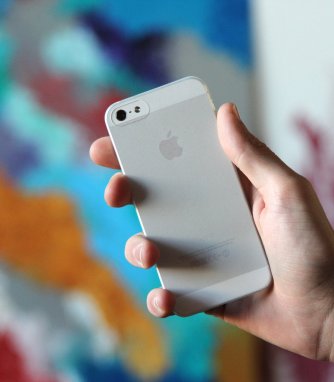
The design on the iPhone 5 is incredible, with the sleek lines, the different color temperatures, and the anodized aluminum, who would want to cover their phone up with a case?

A case does come in handy though, when you accidentally drop your iPhone, however, and that’s where Peel’s new iPhone 5 cases come in to play!

Peel’s iPhone 5 cases come in two different colors, each designed to complement your iPhone; black and white. The iPhone 5 case is 0.35mm thick, and when you are using your iPhone, you hardly feel any case on it at all (and that’s the best part!)

Peel

As for protecting your iPhone 5, the Peel case does an incredible job for such a thin case. I dropped my iPhone 5 down the steps, (oh, the things I do for reviews – LOL!) and the case held up surprisingly well with not a single scratch on my iPhone 5, which is pretty unbelievable.

Another feature that I really like about the new Peel case for iPhone 5 is the fact that every single Peel case comes “unbranded” meaning there is no logo or company marks on this case. What that means is that you get a thin, mostly transparent iPhone case, so you can enjoy the full beauty and fun of an iPhone 5 without having the “baggage” of a clunky case on your precious smartphone.

Peel

 Overall, the Peel iPhone 5 case is definitely going to be staying as my “go-to” iPhone case for a long time because of the protection, thinness, and top-quality products used when making this case.

You can read more about, or purchase the Peel iPhone 5 case here!

Review: Touchfire Keyboard for iPad

Touchfire started out as a Kickstarter project. Kickstarter is a crowd-funding Web site that enables people to help bring promising new products to life. Touchfire ended up raising over $200,000, which is incredible!

The Touchfire keyboard is made from a high-performance silicone rubber, which makes it very easy to clean (rinse in sink), and it is very easy to store. Touchfire uses the magnets in the iPad 2, 3, & 4 to automatically align in place, and on the iPad 1, the non-slip bottom keeps it in place.

So is this new keyboard easier to type with? Can it replace the Apple Bluetooth Keyboard as your go-to keyboard for your iPad? All of these questions will be answered in my review of the Touchfire Keyboard for iPad!

—–

Quality

The materials used in Touchfire are of very high quality. In my 2 weeks of testing, the Touchfire showed no signs of scratches or tears, which is very impressive considering my iPad goes everywhere with me and I use it 24/7.

How it works

The Touchfire aligns automatically using the iPad’s magnets that are used to attach with the Apple Smart Cover. This is a brilliant feature, because you won’t have to worry about the Touchfire moving or shifting during typing as the magnets hold it in place very strongly. On the iPad 1, the Touchfire sticks on to the iPad using the non-slip button on the bottom of the Touchfire. I don’t have an iPad 1 on hand to test this with, but here’s a video from Touchfire demonstrating how this works.

Usability

Typing with the Touchfire keyboard on the iPad was a breeze. The Touchfire adds tactile feedback to the typing experience on the iPad, which makes it very much like a computer keyboard, and is definitely more easy than typing on the iPad without the Touchfire installed. With the tactile feedback of the Touchfire, I found that I was making less typing errors than normal, which saved a lot of time from having to go back and correct my mistake as I would have to do normally.

Cleaning

The Touchfire can be easily washed by running the keyboard under tap water & drying it with a towel and this is something that I found myself doing a lot of during my two weeks of testing. The Touchfire can get really dirty, very quickly. It accumulates tons of hair, dust, & other particles because of the sticky rubber keyboard. I would find myself washing the Touchfire keyboard every 2-3 days of use, which isn’t bad considering all the typing and work I had done on my iPad in the last few weeks.

Overall

Overall, the Touchfire is an excellent addition to any iPad. It allows you to type faster, decreases errors in your typing, and it is lighter & easier to travel with than a big, bulky Apple Keyboard. If you travel a lot, or write long emails, stories, or notes on your iPad and you don’t want the hassle of bringing along a bluetooth keyboard, and if you don’t mind washing the keyboard every 2-3 days, this is the product for you.

You can read more about and purchase the Touchfire Keyboard for iPad here.

Review: Apple iPhone 5

The Apple iPhone 5 – a smartphone that has been rumored, wished, and talked about – is finally here and it’s packing a huge punch with a brand new A6 processor, bigger screen, new design, and super fast 4G LTE. Not a bad upgrade from the iPhone 4S!

Apple is one of the leading tech companies all around the world, with their vast product line of Macs, iPods, iPhones, & displays. Every year, there is always that one must-have smartphone and most of the time, Apple’s iPhone is that particular device.

Can this new iPhone 5 keep up that must-have smartphone standard? Is it that much better than the iPhone 4/4S to warrant an upgrade? Is 4G LTE that much faster than 3G? All of these questions and more will be answered in my review of the Apple iPhone 5 below.

—-

Design
Apple has always been known for their unique sense of design and in particular, their design used on the iPhone 4 & 4S smartphones. The iPhone 4/4S had people from all around the world ranting and raving about the sleek, glass and aluminum combination of the smartphones. These Apple devices set a standard for smartphone manufacturers to not only release high-quality products, but high-quality products with a great design and the new iPhone 5’s design takes Apple quality to a new level of craftsmanship.

Apple added a bigger screen to the iPhone 5 coming in at 4 inches (9 millimeters taller than the iPhone 4/4S). The iPhone 5 is the same width as the iPhone 4/4S, so typing with one hand is just as easy. With this added screen real-estate, the iPhone 5 also has 18% more pixels than the iPhone 4S for an impressive 1136-by-640 resolution, which makes playing games, watching movies, and even checking email, a vivid, visual delight! The color has also received a boost compared to previous iPhone models with a color saturation that is 44% greater than before.

The Apple new smartphone is just 7.6 millimeters thin and weighs in at 3.95 ounces, which despite the iPhone 5’s added screen size, makes the phone feel very thin & light in the hand; without feeling cheap or inexpensive. The iPhone 5 is 18% thinner, 20% lighter, and there is 12% less volume than the iPhone 4S.

Apple introduced a new design with the iPhone 5 as well, as the back of iPhone 5 is made of anodized 6000 series aluminum (same material used in Apple Macs) with the inlays along the top and bottom made of ceramic glass (white & silver model) or pigmented glass (black & slate model). This new design for the iPhone 5 makes it an even more beautiful device to look at and it truly is a work-of-art.

Hardware


The iPhone 5 is a beast of a smartphone, complete with 4G LTE, a blazing fast new A6 processor, and well as an 8 megapixel iSight camera on the back & an 1.2 megapixel FaceTime-ready HD webcam on the front.

The new A6 processor on the iPhone 5 makes almost everything faster. Opening apps, multitasking, editing movies or music, or creating Keynote projects, is now a breeze; without any lagging or hesitation. You might not think that the A6 processor does much on paper, but when you get your hands on an iPhone 5, you’ll realize how important it is for everyday things.

I reviewed an iPhone 5 running on Verizon’s 4G LTE network, which is one, if not THE fastest data network for a US mobile phone carrier. Downloading apps, movies, & music was very quick and again, it is a massive improvement over the 3G network that the 4S and iPhone 4 run on.

I didn’t really notice that much of a difference between the camera on the iPhone 4S and iPhone 5. What I did notice was a huge difference in the photo quality of the front camera on the iPhone 5 compared to previous generations, however. Photos using the front camera were much clearer and less pixel-y than before, which is perfect for people who enjoy taking pictures of themselves or FaceTiming friends & family.

Software


The software that is shipping with the iPhone 5 is Apple’s brand new iOS 6, which was announced at WWDC 2012 back in June and was released to the public on September 19th.

iOS 6 isn’t as much as a revolutionary software update as iOS 4/5 were, but is more geared to tweaking and creating a better user experience around all iOS devices. Some of the new features include; updated UI (from grey to light blue/silver) in the standard Apple apps, Passbook, Do Not Disturb, brand new Maps, Facebook integration, FaceTime over 3G/4G LTE, new emojis 🙂 (LOL), and many more updates as well.

Passbook is an app that allows you to save boarding passes, movie tickets, retail coupons, loyalty cards, and more are now all in one place. You can add passes to Passbook through apps, emails, & website from participating businesses. It’s a great idea and I love using it with my gift cards, as I don’t have to go digging through my car’s pockets to find my gift card. Passbook will also send you push notifications when you arrive at a location that you have a Passbook pass for, which is very handy if your at the airport or walk into a store to redeem your favorite gift cards!

Do Not Disturb has to be my most used feature on iOS 6. Do Not Disturb allows push notifications to come through to your phone, but when the notifications come in, the screen will not turn on and a sound will not be played. However, when you turn the screen back on, all your notifications will be waiting on your lock screen. I use Do Not Disturb regularly! Another great feature about Do Not Disturb is that you can allow your “Favorites” calls and text messages to come through normally but still collect other notifications not set as your Favorites in the lock screen.

Apple has redesigned their Maps application from the ground up, which means they have completely gotten rid of their Google-hosted maps, which is a good and bad thing. The good is that it looks stunning, but the new Maps app isn’t as updated as the Google Maps with driving directions and correct locations. Also added in the new Maps app, is visual and spoken turn-by-turn directions as well as real-time traffic updates.

Overall, the new iOS 6 software isn’t REvolutionary but more EVolutionary. With all these new features and tweaks, it makes using the iPhone 5 even easier & faster than before. Every year, Apple makes its iOS software even better, and this year is not any different.

Overall


The new iPhone 5 is a beast of a device – with the new design, upgraded hardware, bigger & brighter screen, faster 4G LTE speeds, and new iOS 6 software, the iPhone 5 has yet again set the smartphone bar very high for competing mobile phone manufacturers.

The iPhone 5 is available in two colors: Black & Slate, or White & Silver. Prices for the iPhone 5 on a cellular contract are 16 GB ($199), 32 GB ($299), and 64 GB ($399).

The new iPhone 5 is available on Verizon Wireless, AT&T, and Sprint.

You can read more about and purchase the iPhone 5 on Apple’s website.

Quick Review: Samsung Galaxy S III for Verizon Wireless

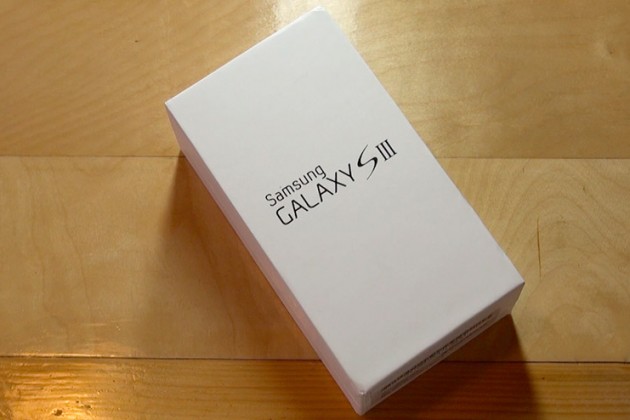
Considering its predecessor, the Galaxy S II, sold millions upon millions of units, a lot of expectations have been mounted on Samsung’s shoulders for this quad-core smartphone. Is it really worth all the hype? How does it perform in everyday life? You can find out about all of this and more in my review of the Samsung Galaxy S II for Verizon Wireless.

 —-

Specs

– Screen: 4.8″ 720×1280
– Processor: 1.4 GHz quad-core Exynos
– Storage: 16GB/32GB/64GB, Up to 64GB SD card support
– Camera: 8-MP rear camera with LED flash, 1.9MP front-facing camera
– Connectivity: HSPA/3G, Wi-Fi 80.211b/g/n, Bluetooth 4.0, DLNA, A-GPS, GLONASS, NFC, Wi-Fi Direct, USB On The Go
– Ports: microUSB (MHL compatible), 3.5mm headphones
– Battery: 2100mAh, removable
– Price: $200 ($599 for full-retail)

What is it?

It’s the smartphone that was designed to put every other Android phone in the dust. It’s got a huge HD display with next-gen screen technology; Samsung’s new quad-core Exynos processor chip, and a bunch of new software; including this really cool eye-tracking ability to change the screens brightness!

Who’s It For?

This phone was built for a broad range of people, everyone from Android enthusiasts, to the people who still use a typewriter, all the way to the Apple Fanboys.

Design

There are many people who are just sold on the phone because they owned a previous Galaxy S device, as well as some people who don’t know anything about the phone but like the largeness of the device. That’s great, but what about the design and the feel of the device? Will it fit in your pocket? Ladies, what about your little clutch purse?

The new HyperGlaze polycarbonate chassis feels very cheap, nothing like the high-end smartphone as Samsung advertises. While it may be pretty to look at, it make’s the SIII feel very fragile, almost like a child’s toy.

The camera-button has lost it’s previous location, and now the the volume button placement makes it slightly tricky to activate the lock key on the other side.

However, while first impressions will be mixed, the build quality of the Galaxy S III is excellent. When the Galaxy SIII was unveiled, Samsung states that they created the new smartphone to resemble the Earth. The toughened glass front feels very solid when stroked and prodded, and the beautiful design of the chassis fits very well in the palm – very much like a pebble, thanks to the rounded edges.

Plus, on the back side of the device, there’s a compartment for a removable SD card, so smartphone users can further personalize their experience.

Using It

Samsung has changed the UI of the Galaxy S II (TouchWiz) a little bit, adding re-sizeable widgets and some brand new widgets like a brand new brightness toggle in the notifications tray.

The camera is very strong. It uses a very similar sensor as seen in the S II, and while the software optimisation has made it super quick and added in some key features, camera lovers might not want to use this as their daily camera of choice.

But overall, the phone just works. There’s no more lagging when flipping through the homescreens, playing games, or watching movies, like I experienced with the Galaxy S II. (My review here.)

Highlights

The Super AMOLED screen offers terrific sharpness and vivid colors when viewing pictures, movies, or playing games! Samsung has been known for there very vivid TV screens and they seem to have brought the best of their television screens to the new Galaxy S III.

Again, the Samsung Galaxy S was very fast, and I experienced no lag during my two weeks of testing.

Lowlights

The only real issue I have with the Galaxy S III is the design. If I am paying $200 ($599 for full-retail) I want my smartphone to feel like an expensive, solid device, not like a child’s toy.

Overall

Should you buy it? If you haven’t bought a new smartphone since 2010, and are looking for an Android phone, yes. But, if you are still on the edge about buying it, I would wait until the new iPhone (5th generation) comes out, and compare the two.

Get past the design and you’re looking at one of 2012’s leading smartphones: crazy powerful, with a beautiful screen, and more storage than an average USB stick.

It’s not perfect (I haven’t seen any phones this year hit that bar) but it’s very, very close… and it will probably be enough to entice those that simply can’t bear the thought of waiting until October to pick up the iPhone 5.

You can read more about and purchase the Samsung Galaxy S III here.

Review: LifeProof Case for iPhone 4/4S

Are you one of those people who like to tweet in the shower? How about Facebook in the bathtub? Taking pictures in the pool? There are tons of reasons, weird and not, why people would want to do these things, and that’s where the LifeProof iPhone case comes in.

A little about LifeProof:

LifeProof is a young, vibrant company based in San Diego that designs, manufactures and markets LifeProof cases for all-environmental protection, functionality and interactivity to SmartPhones and Tablet PCs.

The registered brand name ‘LifeProof’ is inspired by the protection and fully functional convenient operation of the device in rain, in water while swimming or surfing, in mud, sand, dust, snow or ice. The company mantra is ‘Freedom’ – freedom to be connected anywhere with your mobile device; freedom to build relationships, gain knowledge, exercise, and juggle work; freedom for all people anywhere to go everywhere.

So can this LifeProof case really protect your iPhone from all these elements? To find out, keep reading my review of the LifeProof case for iPhone!

—-

Quality

The LifeProof case is made out of very durable, hard plastic, that will protect your precious iPhone from scratches, drops, and more. All of the materials used in the LifeProof case are of very high-quality, and your paying for it. After my two weeks of testing the LifeProof case, I saw no signs of deterioration, scratches, or any of the color chipping or rubbing off, something that I feel is pretty incredible after all the torturous things I put the LifeProof case through. (If you don’t believe me, look at the image gallery.)

Usability/Design

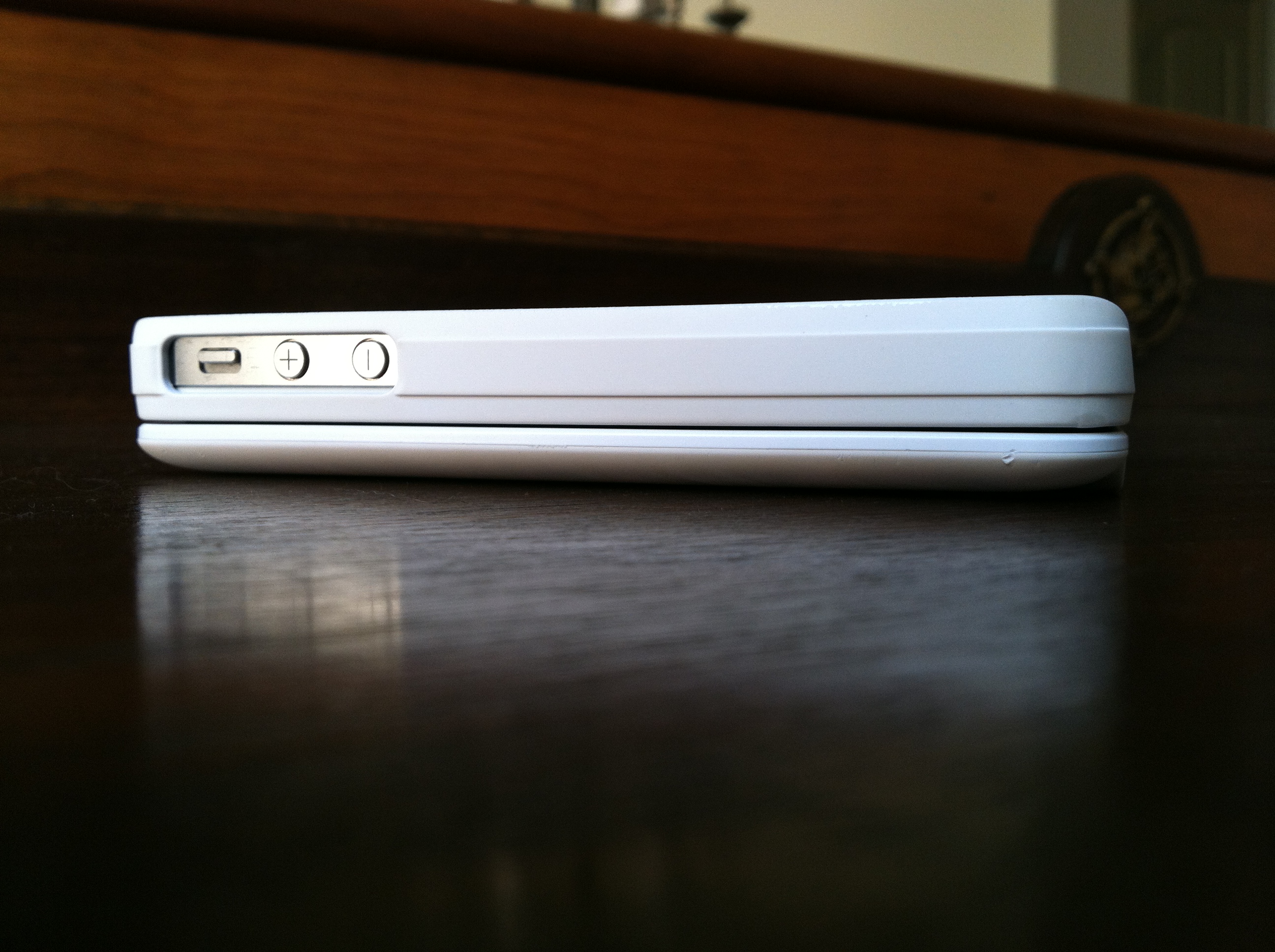
Usually adding this much protection in one case makes your iPhone very bulky and heavy, but the LifeProof case manages to keep a sleek-profile by adding only 1/16 inches (1.5mm) to your iPhone.

The LifeProof case is also very light, weighing in at 28 grams, so you don’t have to worry about it adding any extra weight to your iPhone. Also, the LifeProof case is available in 4 unique colors; Black, White, Pink, & Purple.

The designers at LifeProof did an excellent job creating the LifeProof case as well, by adding slots for the charging port as well as the headphone jack at the top of the iPhone. Also on the back, the designers did a great job with the camera by making sure that it was very protected while taking away from the clarity of the 4S’ 8 megapixel and new optics.

Protection

This is the main thing that everyone cares about for the LifeProof case. Can it protect your iPhone if you drop it? What about going underwater? What happens if you run it over?

LifeProof has run many tests on their new LifeProof case (videos here), and so have I, and I can whole-heartedly say that the LifeProof case is a tank of a iPhone case.

LifeProof states on their website that the LifeProof case “has a unique design that makes it waterproof to a rated depth of 2 Meters (6.6ft)”, and I tested that thoroughly and I can prove this statement true, having submerged my iPhone many times in pools, bath-tubs, sinks, coolers, etc… and each time my iPhone came out of the LifeProof case dry as a bone.

LifeProof also states on their website that the LifeProof case “is designed for a high degree of shock and impact protection and has been tested to Military Specifications MIL-STD-810F-516.5. Meaning that it can be dropped on all surfaces and edges onto concrete from a height of 2 meters (or 6.6ft).” I can also say this statement is true and more so, as I have dropped my iPhone from greater distances and it came out of the LifeProof case perfectly fine.

Overall

Right now this is THE iPhone case to beat in terms of protection, functionality, and design. LifeProof has done an amazing job in creating their first product and I can’t wait to see what they come up with next. You can read more about the LifeProof case and purchase it on LifeProof’s company website here.

Review: Boxwave KeyboardBuddy iPhone Case

Millions of people are very happy with Apple’s on-screen virtual keyboard, but many still desire a tactile response only a physical keypad can provide. Apple has stated in the past that it sees no point in adding a hardware QWERTY keyboard onto the iPhone, but the company goes back and forth so many times with iOS products that no one knows what to believe.

Knowing this, BoxWave thought of a way to use the iPhone’s Bluetooth technology and build a case that had a physical QWERTY keyboard. It’s great for people who want Apple to add a QWERTY to the iPhone, but will it lure over virtual-keyboard-users over? How is it compared to the other Bluetooth Keyboard Cases for the iPhone? I’ll answer all of these questions and more in my review of the BoxWave KeyboardBuddy case for iPhone 4 & 4S.

Design

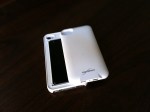
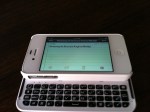
Design wise, the Keyboard Buddy is very sleek, especially considering that it adds a full hardware keyboard to the back of the device. The sliding mechanism is very solid, and there’s an enthusiastic click as you open and close it. It’s reminiscent of the slider on a device like the T-Mobile Sidekick – and that’s a good thing!

There’s also more than enough room to hit the top row of number keys, something other sliding cases often have trouble with. It charges via miniUSB, and BoxWave claims you should be able to go a huge 45 days without having to re-charge. The whole kit has a matte white, soft touch finish that adds a nice grip to the all-glass iPhone. Pairing the Keyboard buddy was an uneventful affair; the BoxWave was up and running in about 30 seconds after typing in a passcode. That’s when I could start putting this thing to the test!

Keyboard

The actual keyboard on the Keyboard Buddy is very similar to the one found on the Droid 2 or 3. Keys are laid out edge-to-edge, and there’s a decent amount of give with each click. The space bar is perfectly placed in the center of the keyboard, unlike some of the other Bluetooth keyboards on the market today. There’s a home key on the top left as well as a lock key right below it, two nice touches for sure.

It’s important to point out that when you choose to use a physical keyboard with your iOS devices, you lose all autocorrect functionality. I longed for things like automatic capitalization of “i” for example, and wish that it would automatically add apostrophes to words. Hopefully this is something Apple could enable as an option in a future version of iOS.

Overall

Overall, the BoxWave KeyboardBuddy case is an excellent option for BlackBerry users wanting to switch to the iPhone but not wanting to sacrifice their physical keyboards, as well as for older iOS users who have trouble seeing the letters on the iPhone’s virtual keyboard and like the satisfying click of a button when using a physical keyboard. I can type faster on the iPhone’s virtual keyboard, but I do like using the KeyboardBuddy to type out long emails or blog posts when I’m on my iPhone. You can read more about the BoxWave KeyboardBuddy and purchase it here.

Full gallery below:

Quick Review: Motorola Xyboard 10.1

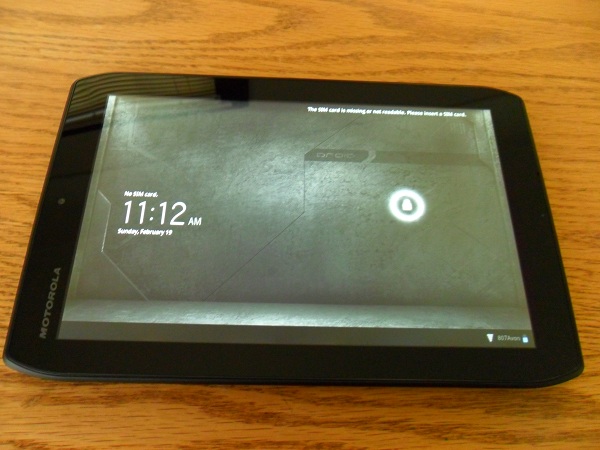
The new Droid Xyboard is a beast of a tablet. Motorola’s newest tablet runs on Verizon’s super-fast 4G LTE Network, it runs on Android’s 3.2 Honeycomb (4.0 Ice Cream Sandwich Upgradeable), as well as having two cameras; 5 megapixel on the back with a HD Webcam on the front, and a huge 7,000 mAh battery. All that said, can it compete with Apple’s third-generation iPad? Keep on reading for my review of the Droid Xyboard 10.1 running on Verizon’s 4G LTE Network.

Highlights

  • Verizon  – Verizon’s 4G Network is easily the fastest LTE network in the United States. In my testing around the Dallas Area, the Xyboard never dropped below 2 bars of LTE. I consistently received download speeds of around 19 MB/s and an upload speed 10 MB/s.
  • Display – The display on the Xyboard 10.1 is another high point, responding to touch input quickly and loading websites, apps and videos sharply, clearly and brightly. Unlike the iPad or the Galaxy Tab 10.1, the Xyboard has a mini-HDMI port built-in, which makes it easy to hook the tablet up to a TV set.
  • Camera – The 5.0 MP back-camera on the Droid Xyboard 10.1 is one of the best cameras on a tablet to date. The addition of the LED Flash is what makes the Xyboard’s camera stand out. Lowlight pictures were perfect – never overexposed nor too bright.
  • Software / Specs – On other devices, Android 3.2 Honeycomb always seemed to be very slow and laggy, but with the help of the dual-core 1.2 GHZ processor, the Xyboard flew through webpages, emails, apps, and homescreens. I never had an app force-quit or crash while using the Xyboard 10.1, and I credit that to Motorola by putting great specs into the Xyboard to get the most out of Honeycomb.

Lowlights

  • Size – Holding the Droid Xyboard 10.1 in landscape orientation is just fine, but when switching it over to portrait it felt awkward to hold and touch the screen. When using the iPad, the transition from landscape to portrait is seemless, but on the Xyboard it feels more like a liability.
  • Software – Honeycomb is a lowlight and a highlight of the Droid Xyboard. While it runs very fast, the User Interface is very clunky and not easily learned by all people.

Overall


This is THE best Android Tablet, no doubt about it! Great display, amazing camera, super-fast processor, and running on Verizon’s 4G LTE Network, the Droid Xyboard absolutely smokes the other Android Competition and in some ways, even the Apple iPad.

I would recommend the Droid Xyboard 10.1 for Android enthusiasts, business people, or teachers. But if you are a first-time smartphone or tablet user, I would recommend checking out something else. You can read more about and purchase the Motorola Xyboard here.